

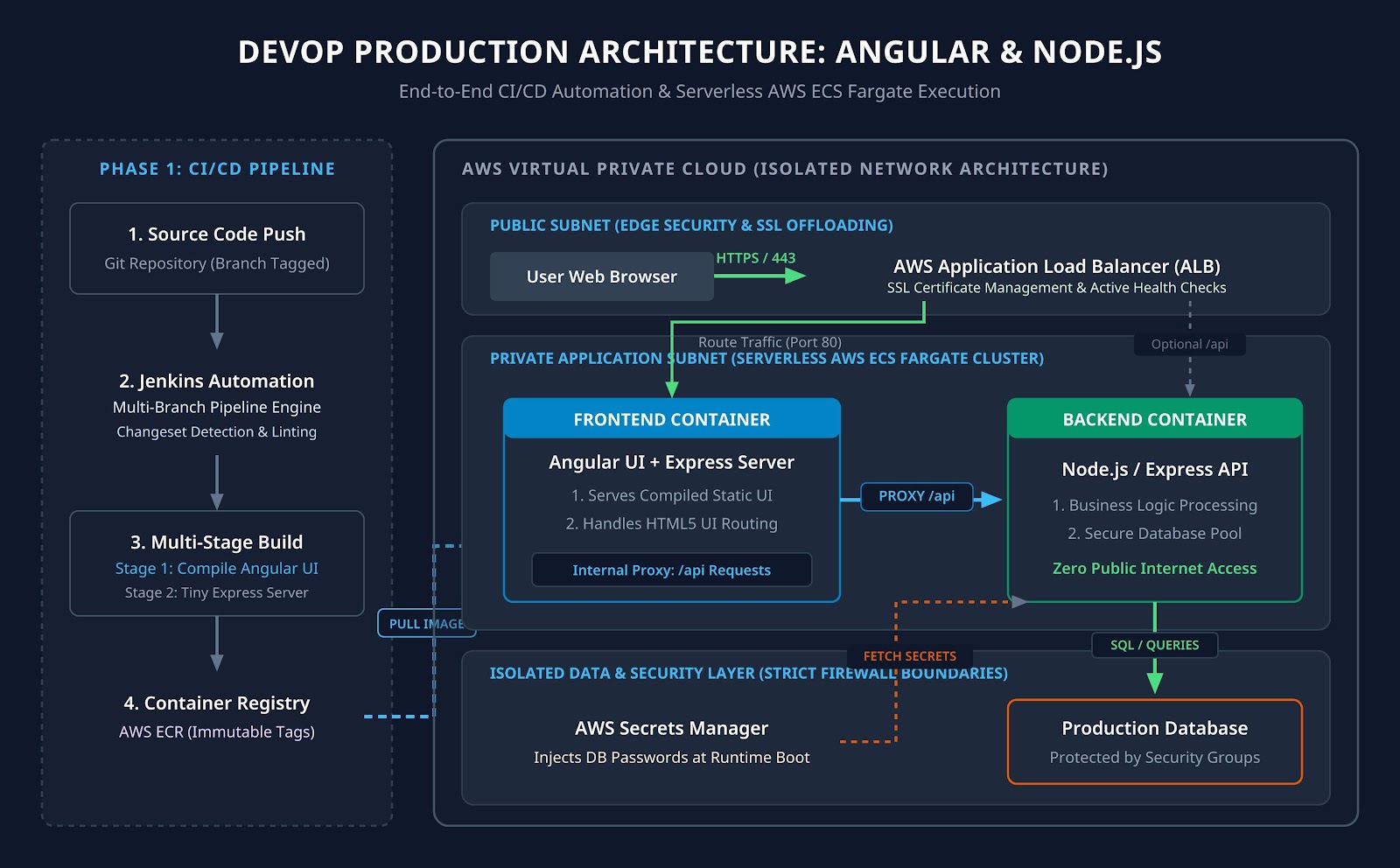

When migrating a traditional web application into the cloud, manual deployments and hardcoded configurations quickly become a bottleneck. This guide walks through a real-world enterprise pattern for containerizing a modern Angular frontend with a secure Node.js backend, automating infrastructure with AWS CloudFormation, and building a multi-branch CI/CD pipeline using Jenkins.
1. Architectural Overview in Layman’s Terms
To understand how we scale and secure a modern JavaScript cloud stack, let’s break down the core engineering tools into everyday analogies:
- Docker (Containerization): Think of Docker like a standardized shipping container. No matter what you put inside, it fits perfectly onto any cargo ship, train, or truck in the world. Docker packs your Angular application, Node.js server, and configuration files into a standardized box that runs identically on a developer’s laptop, a test environment, or a live production server.
- AWS ECS (Elastic Container Service): If Docker builds the shipping containers, AWS ECS is the automated mega-port manager. It decides which physical servers have enough memory and computing power to run your containers, monitors their health, and automatically replaces a container if it crashes.
- CloudFormation (Infrastructure as Code): Instead of manually logging into the AWS console and clicking buttons to set up servers and networks—which is highly prone to human error—we write a digital blueprint file. AWS CloudFormation reads this blueprint and builds the exact cloud infrastructure flawlessly in minutes.
- Jenkins Multi-Branch Pipeline: Think of this as an automated assembly line. The moment a developer pushes code to a specific Git branch (like dev, staging, or main), Jenkins recognizes it, runs a custom assembly line to build and test the code, and ships the final container directly to the correct cloud environment without human intervention.
2. Step 1: Dockerizing the Angular Frontend via Node.js
In a secure enterprise architecture, a frontend application (running in the user’s web browser) should never connect directly to a database. Instead, the browser talks to a separate backend API, which securely handles database queries.
To serve our Angular app efficiently, we use a lightweight Node.js Express server inside the container. This server delivers the compiled Angular UI to the user and acts as a secure reverse proxy, forwarding any API calls safely into the internal backend network.
The Production Dockerfile
We use a Multi-Stage Build. In the first stage, Node.js compiles our heavy Angular TypeScript code into highly optimized static HTML and JavaScript files. In the second stage, we copy only those compiled files into a fresh, lightweight Node.js environment. This keeps our production image tiny, fast, and secure from external vulnerabilities.
# --- STAGE 1: Build the Angular Application ---

FROM node:18-alpine AS build-stage

WORKDIR /app

COPY package*.json ./

RUN npm ci

COPY . .

# Compiles the Angular app for production optimization

RUN npm run build --prod

# --- STAGE 2: Serve via Lightweight Node.js Server ---

FROM node:18-alpine

WORKDIR /app

# Copy the compiled Angular UI from Stage 1

COPY --from=build-stage /app/dist/angular-app ./dist

# Copy the lightweight server script and dependencies

COPY server.js package.json ./

RUN npm install --production

EXPOSE 80

CMD ["node", "server.js"]
The Supporting Node.js Server (server.js)
This Express script serves the Angular frontend and creates a secure proxy tunnel (/api) that forwards database-bound requests to your internal Node.js backend service.
const express = require('express');

const path = require('path');

const { createProxyMiddleware } = require('http-proxy-middleware');

const app = express();

// Secure Proxy to the Backend Node.js API Layer

app.use('/api', createProxyMiddleware({

    target: 'http://node-backend-api.local:5000',

    changeOrigin: true

}));

// Serve static files from the Angular build directory

app.use(express.static(path.join(__dirname, 'dist')));

// Route all other UI requests back to Angular's index.html for UI routing

app.get('/*', (req, res) => {

    res.sendFile(path.join(__dirname, 'dist', 'index.html'));

});

app.listen(80, () => console.log('Angular app running securely on Node.js port 80'));
3. Step 2: Infrastructure as Code via AWS CloudFormation
Instead of manually building cloud servers, we define our infrastructure in a YAML blueprint. This template creates an Amazon ECR (Elastic Container Registry) to store our private Docker images and provisions an AWS ECS Fargate service. Fargate is “serverless,” meaning AWS manages the underlying operating system and hardware maintenance entirely.
AWSTemplateFormatVersion: '2010-09-09'

Description: 'Production Infrastructure Blueprint for Angular Application on AWS ECS Fargate'

Parameters:

  EnvironmentName:

    Type: String

    Default: production

Resources:

  # 1. Private Container Registry to hold Docker Images securely

  AngularRepository:

    Type: AWS::ECR::Repository

    Properties:

      RepositoryName: !Sub '${EnvironmentName}-angular-app'

      ImageScanningConfiguration:

        ScanOnPush: true

  # 2. ECS Task Definition (The Blueprint for running our container)

  ECSTaskDefinition:

    Type: AWS::ECS::TaskDefinition

    Properties:

      Family: !Sub '${EnvironmentName}-angular-task'

      NetworkMode: awsvpc

      RequiresCompatibilities:

        - FARGATE

      Cpu: '256'    # 0.25 vCPU Allocation

      Memory: '512' # 512 MB RAM Allocation

      ExecutionRoleArn: !Sub 'arn:aws:iam::${AWS::AccountId}:role/ecsTaskExecutionRole'

      ContainerDefinitions:

        - Name: angular-node-container

          Image: !Sub '${AWS::AccountId}.dkr.ecr.${AWS::Region}.amazonaws.com/${EnvironmentName}-angular-app:latest'

          Essential: true

          PortMappings:

            - ContainerPort: 80

              Protocol: tcp

          LogConfiguration:

            LogDriver: awslogs

            Options:

              awslogs-group: !Ref CloudWatchLoggingGroup

              awslogs-region: !Ref 'AWS::Region'

              awslogs-stream-prefix: angular

  # 3. CloudWatch Logging Group for Auditing & Observability

  CloudWatchLoggingGroup:

    Type: AWS::Logs::LogGroup

    Properties:

      LogGroupName: !Sub '/ecs/${EnvironmentName}-angular-logs'

      RetentionInDays: 30

  # 4. ECS Service (The Manager that maintains our running containers)

  ECSService:

    Type: AWS::ECS::Service

    Properties:

      ServiceName: !Sub '${EnvironmentName}-angular-service'

      Cluster: 'production-core-cluster'

      TaskDefinition: !Ref ECSTaskDefinition

      DesiredCount: 2 # Maintains 2 parallel instances for High Availability

      LaunchType: FARGATE

      NetworkConfiguration:

        AwsvpcConfiguration:

          AssignPublicIp: ENABLED

          Subnets:

            - subnet-0123456789abcdef0

            - subnet-0123456789abcdef1

          SecurityGroups:

            - sg-0123456789abcdef2
4. Step 3: CI/CD Automation via Jenkins Multi-Branch Pipeline
A Jenkins Multi-Branch Pipeline reads a configuration file named Jenkinsfile stored directly inside your source code repository. When a developer pushes code, Jenkins detects the branch name, builds the application, pushes the image to ECR, and executes a zero-downtime rolling deployment in AWS ECS.
pipeline {

    agent any

    environment {

        AWS_ACCOUNT_ID = '123456789012'

        AWS_DEFAULT_REGION = 'us-east-1'

        IMAGE_NAME = "angular-app"

        CLUSTER_NAME = "production-core-cluster"

    }

    stages {

        stage('Initialize Environment') {

            steps {

                script {

                    if (env.BRANCH_NAME == 'main') {

                        env.ENV_SUFFIX = 'production'

                        env.SERVICE_NAME = 'production-angular-service'

                    } else if (env.BRANCH_NAME == 'staging') {

                        env.ENV_SUFFIX = 'staging'

                        env.SERVICE_NAME = 'staging-angular-service'

                    } else {

                        env.ENV_SUFFIX = 'dev'

                        env.SERVICE_NAME = 'dev-angular-service'

                    }

                    echo "Automated Deployment Flow Triggered for Branch: ${env.BRANCH_NAME}"

                }

            }

        }

        stage('Compile & Security Scan') {

            steps {

                echo 'Running Angular/Node compilation and security checks...'

            }

        }

        stage('Build & Containerize Image') {

            steps {

                script {

                    sh "docker build -t ${IMAGE_NAME}:${env.ENV_SUFFIX} ."

                    sh "docker tag ${IMAGE_NAME}:${env.ENV_SUFFIX} ${AWS_ACCOUNT_ID}.dkr.ecr.${AWS_DEFAULT_REGION}.amazonaws.com/${env.ENV_SUFFIX}-${IMAGE_NAME}:latest"

                }

            }

        }

        stage('Publish Image to AWS Cloud') {

            steps {

                script {

                    sh "aws ecr get-login-password --region ${AWS_DEFAULT_REGION} | docker login --username AWS --password-stdin ${AWS_ACCOUNT_ID}.dkr.ecr.${AWS_DEFAULT_REGION}.amazonaws.com"

                    sh "docker push ${AWS_ACCOUNT_ID}.dkr.ecr.${AWS_DEFAULT_REGION}.amazonaws.com/${env.ENV_SUFFIX}-${IMAGE_NAME}:latest"

                }

            }

        }

        stage('Zero-Downtime Rolling Deploy to AWS ECS') {

            steps {

                script {

                    sh "aws ecs update-service --cluster ${CLUSTER_NAME} --service ${env.SERVICE_NAME} --force-new-deployment --region ${AWS_DEFAULT_REGION}"

                }

            }

        }

    }

    post {

        success { echo "Deployment Completed Successfully!" }

        failure { echo "CRITICAL: Deployment pipeline failed." }

    }

}
5. Enterprise Production Operations
To ensure the application remains highly available, performant, and secure while real users interact with it in a live environment, we implement four core operational pillars:
A. Environment Configuration & Secret Management
Hardcoding database credentials or private API endpoints directly into source code is a major security risk. In this architecture, we inject configuration variables dynamically at runtime. Sensitive strings—like database passwords and Node.js encryption keys—are stored encrypted inside AWS Secrets Manager. The ECS Fargate container pulls these secrets securely into memory at the exact millisecond it boots up, leaving zero trace in your code repository.
B. Traffic Routing & SSL/TLS via AWS Application Load Balancer (ALB)
Individual cloud containers dynamically change their IP addresses as they scale out or recycle. To manage this safely, we place an AWS Application Load Balancer (ALB) at the public edge of our network. The ALB integrates with AWS Certificate Manager (ACM) to automatically renew SSL certificates, forcing all traffic over secure HTTPS (Port 443). It also performs continuous health checks, instantly rerouting users away from unresponsive containers so they never experience a dropped connection.
C. Comprehensive Monitoring & Observability
If a memory leak occurs or database connection times out, the engineering team must know before users complain. We configure our Node.js application to stream stdout and stderr application logs directly into AWS CloudWatch Logs. We also set up CloudWatch Alarms tied to Amazon SNS; if CPU usage spikes above 80% or server errors occur, automated alerts push immediately to the team’s Slack or PagerDuty channels.
D. Network Isolation via VPC Architecture
Exposing internal APIs or databases directly to the public internet invites brute-force attacks. We build strict boundaries using an AWS Virtual Private Cloud (VPC):
- Public Subnets: Only the Application Load Balancer resides here to accept incoming user web traffic.
- Private Application Subnets: Our Angular and Node.js UI containers run here, hidden from the open internet.
- Isolated Database Subnets: The deepest network layer. We configure AWS Security Groups acting as virtual firewalls to explicitly accept incoming connections only if they originate from the backend API container, blocking all external network traffic.
6. End-to-End Production Traffic Flow
When a user visits the website, their request flows securely through each isolated network layer before reaching the database:
Plaintext
[User Web Browser]
│ (Secure HTTPS Request / Port 443)
▼
[AWS Application Load Balancer] (Handles SSL Offloading & Edge Routing)
│
▼ (Routed into Private Infrastructure Subnet)
[AWS ECS Fargate: Angular UI Container (Node.js)] (Serves the Angular App)
│
▼ (Express Proxy routes /api Requests Internally)
[AWS ECS Fargate: Node.js API Backend Container] ◄─── [Pulls Keys from AWS Secrets Manager]
│
▼ (Through Explicit Isolation Security Group Firewall)
[Production Cloud Database] (Secure Data Processing Tier)
7. Client Value & Architectural Benefits
- Zero Configuration Drift: By utilizing CloudFormation blueprints, your development, staging, and production environments are guaranteed to be perfectly identical. The phrase “it works on my machine” is entirely eradicated from the development lifecycle.
- Zero-Downtime Rolling Upgrades: During deployments, AWS ECS keeps the old version of the application running while starting up the new containers. It shifts user traffic over only after verifying that the new containers have passed all health checks, guaranteeing continuous availability.
- Minimized Cloud Expenses: By utilizing serverless AWS Fargate containers, you no longer pay for expensive virtual servers running at idle capacity during off-peak hours. You are billed strictly for the exact CPU and memory resources consumed while processing actual application traffic.
